
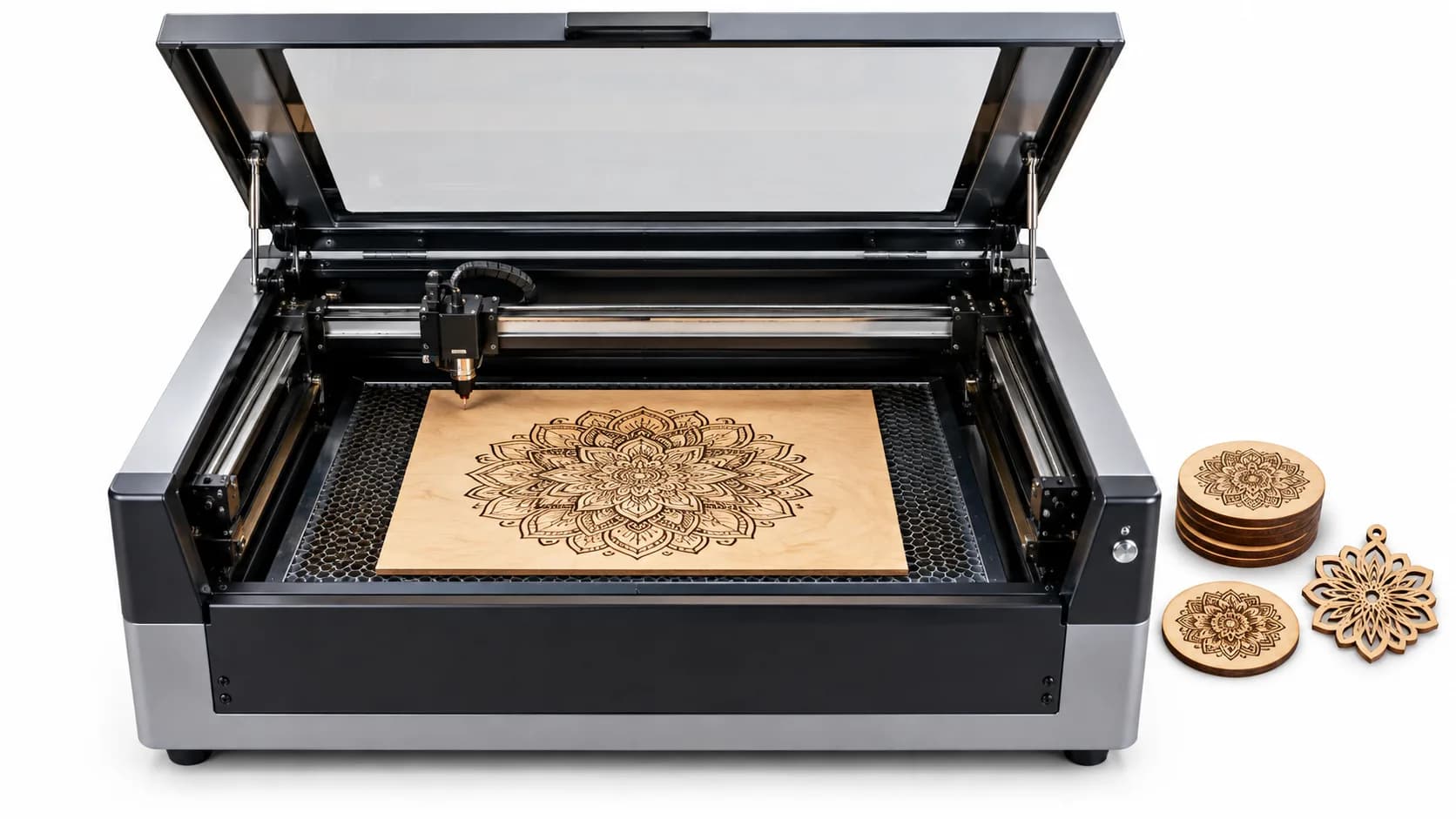
A laser cutter or engraver reads vector shapes, not pixels. For most jobs the easiest file to work with is plain black artwork on a transparent background: every shape is a clear area the laser can cut around, engrave inside or score along. This guide shows how to make that kind of SVG in SvgCraft and how three common laser programs treat it when you import it.
The short version: generate the design in SvgCraft's Black & White tab, download the SVG, import it, and then choose cut, engrave or score in your laser software. The SVG does not decide that for you. Your software's settings do.
What a Black & White SVG from SvgCraft contains
Knowing what is inside the file explains how your laser software will read it.
- Filled black shapes, no strokes. The artwork is made of closed, filled paths in pure black (#000000). There are no outline-only lines.
- No background. The white page background is removed and left transparent, so no rectangle or white box surrounds the design.
- Real holes. Openings inside a shape, such as the middle of a letter "O", are holes in the path itself. They are not white shapes stacked on top of black ones.
- One color. Everything uses one color, so it lands on a single layer or operation until you split it.
A Black & White generation costs 1 credit.
Step 1: Generate the design in the Black & White tab
- Open SvgCraft Projects.
- In the style picker, choose the Black & White tab.
- Pick a style: Vinyl, Flat, Outline, Silhouette, Engraving, Drawing, Linocut or Cartoon.
- Describe the design in a text prompt, or upload an image to convert.
- Choose an aspect ratio close to the shape of your material, then generate.
Choosing a style for laser work
The style changes how much solid black area the design has and how thin its details are. Both matter on a laser, so compare your results on these two points:
- Large solid areas are easy to cut out or fill-engrave.
- Fine lines and hatching add detail, but thin parts can become too small to cut once you scale the design down.
The Engraving, Linocut and Silhouette styles are useful starting points. Generate two or three styles for the same idea, then judge them at the size you will actually cut.
Step 2: Check the SVG before you download
Open the result in Edit SVG, SvgCraft's in-browser editor, if you need to change anything. You can adjust paths and text there. Before downloading, check three things:
- Stray specks. Tiny isolated dots become separate tiny cuts or burns. Delete the ones you do not want.
- Thin parts at final size. A line that looks fine on screen may be thinner than your laser can reliably cut once the design is scaled to a few centimeters.
- Loose pieces. If you plan to cut the design out, any shape that is not connected to the rest will fall away from the material. Decide whether that is what you want.
If you add text in the editor, confirm that your laser software shows it correctly after import. xTool, for example, states that xTool Creative Space cannot process text in SVG files and advises converting text to paths before import (xTool: FAQs on Importing Images).
Step 3: Download the SVG
Download the design as SVG. SvgCraft also offers PDF, PNG and JPG. PDF is a vector format too, and some laser programs accept it, but SVG is the most widely supported vector format for this job. PNG and JPG are raster images: a laser program can engrave them as a picture, but cannot cut along their shapes. Downloading a design you already created does not cost credits.
Set the final physical size in your laser software. An SVG scales without losing sharpness, so there is no need to pick a size before downloading.
Step 4: Import it and choose cut, engrave or score
Each program decides what to do with a shape in its own way. Here is how three common ones describe it in their official documentation.
LightBurn
LightBurn groups shapes into layers by color. According to its documentation, "all graphics that share the same color/layer will be cut or engraved by your laser with the exact same settings" (LightBurn: Colors and Layers). Because a Black & White SVG from SvgCraft uses only one color, black (#000000), the whole design arrives on one layer.
You then set the layer mode:
- Line traces the outline of each shape. Use it to cut the design out or to score its edges.
- Fill engraves the area inside the shapes with parallel lines. LightBurn requires every shape in Fill mode to be closed, and when one shape sits inside another on the same Fill layer, only the area between the two outlines is filled.
SvgCraft's shapes are closed and its holes are part of the paths, so the inside of an "O" stays unengraved in Fill mode. If you want to engrave part of the design and cut another part, select those shapes and move them to a second color or layer.
Glowforge
In the Glowforge app, "strokes become cuts and fills become engraves" when you upload a file, and you can switch a stroke to a score (Glowforge: Make a Gift Tag from Scratch using Inkscape). A Black & White SVG from SvgCraft contains filled shapes only, so it arrives as an engrave.
If you want to cut around the design instead, you need a stroke path. You can draw one in a vector editor before uploading, or use Glowforge's Create Outline tool, which Glowforge lists as a Premium feature. The Glowforge app accepts SVG and PDF for cutting and engraving (Glowforge: Upload Your Own Design File).
xTool Creative Space
In xTool Creative Space you choose the processing type for each object. xTool defines them this way: with Cut "the graphic will be cut out through its outline", with Engrave "the closed area within the outline will be engraved", and with Score "only the outline of it will be processed" (xTool: What is the Difference between Engrave, Score, and Cut?). Closed filled shapes work with all three.
Step 5: Test before the real piece
Power, speed and focus settings depend on your machine and material, and SvgCraft does not set them. Run a small test on a scrap of the same material first. Check that:
- the engraved or cut areas match the black shapes you saw in the editor;
- holes inside shapes stayed unengraved;
- the thinnest details survived at the final size;
- no unwanted specks were burned.
For material choice, ventilation and safe operation, follow your laser manufacturer's official guidance.
Common problems and fixes
The whole design engraves when I wanted a cut
Filled shapes default to engraving in some programs, such as Glowforge. Change the operation in LightBurn (Line) or xTool Creative Space (Cut), or add a stroke outline for Glowforge.
Small details disappear or burn together
The design has details that are too fine for its final size. Scale it up, simplify the area in Edit SVG, or generate again with a style that has larger solid areas.
Tiny dots appear in the burn
These are small isolated shapes in the file. Delete them in Edit SVG before downloading. The clean SVG checklist covers what else to look for.
When a color SVG makes more sense
Most laser work uses one color per operation, so Black & White is the natural fit. If the same design will also be printed as a sticker or product graphic, a Color design may be useful as well. The guide Black and White vs Color SVG compares the two by use case.
Start your laser design
When you are ready, start a design in the Black & White tab of SvgCraft Projects.
How this article was made: drafted with AI assistance and checked by the SvgCraft team against SvgCraft's current product behavior and the official documentation linked above.