
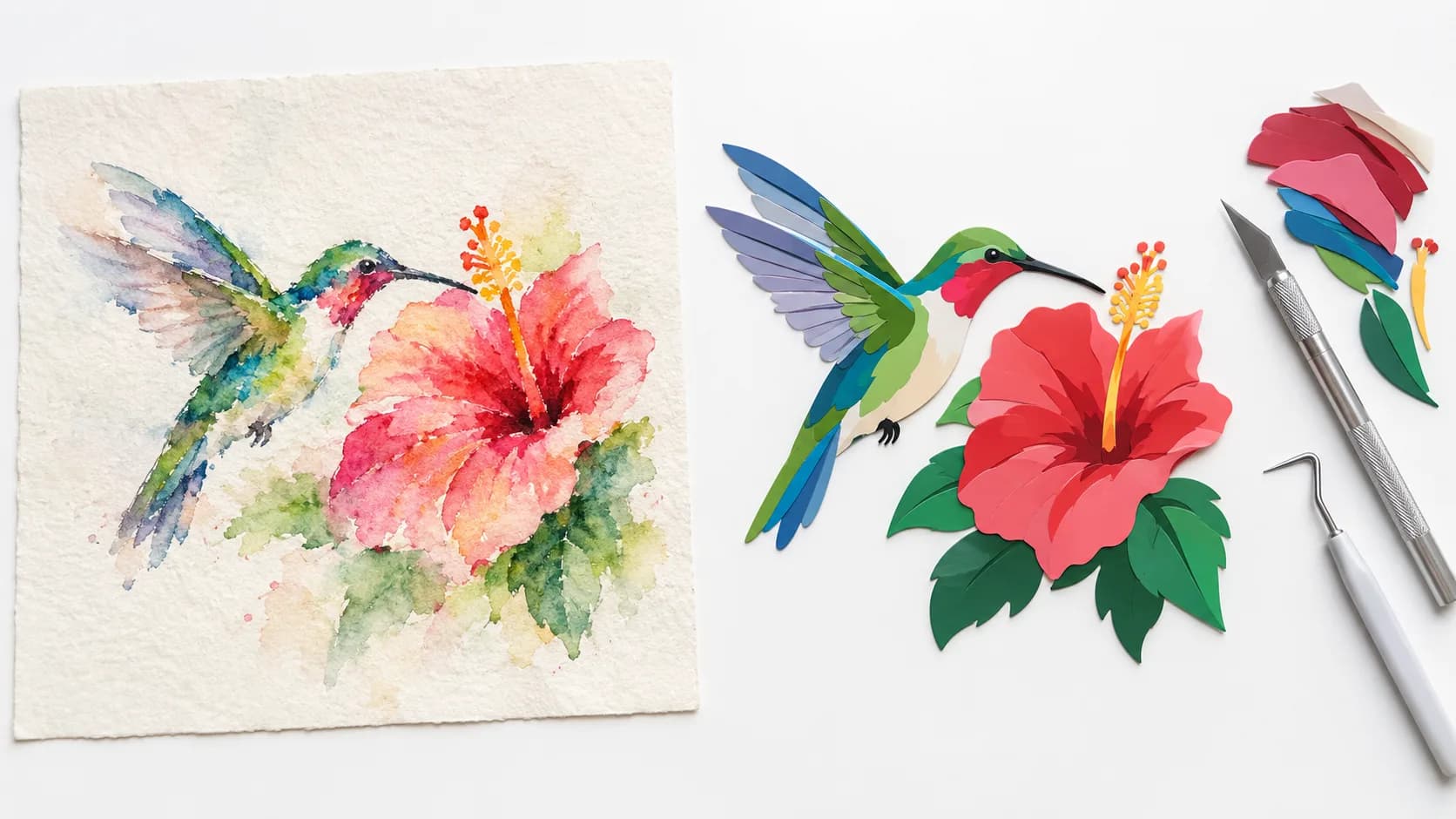
Converting a Black & White image to SVG is mostly a question of where the edge is. A color image is harder: every pixel has to be assigned to a color region, every region needs a clean outline, and neighboring regions have to meet exactly. Most messy color vectors — halos around shapes, hundreds of tiny specks, hairline gaps, huge files — come from one of a handful of predictable problems.
This article explains those problems one by one, what each looks like in a finished file, and how SvgCraft handles them when it turns an AI image into a color SVG. If a traced illustration came out hard to cut, print or edit, one of these five problems is usually the cause.
Why a color image does not map neatly to vector shapes
A raster image is a grid of pixels. An SVG describes shapes: paths with a fill color. To go from one to the other, a converter has to decide which pixels belong together, draw a boundary around each group, and pick one color for it.
With Black & White art there are only two groups, so the main job is drawing smooth edges. With color art, the converter also has to decide how many colors exist, which pixel belongs to which color, and how the boundaries of touching regions line up. Each of those decisions can go wrong in a way that shows up in the final file.
The five problems behind messy color SVGs
1. Anti-aliased edges create halos and extra color bands
Images are rendered with anti-aliasing: along the border between a red shape and a blue shape, the pixels are blends of the two colors so the edge looks smooth on screen. Those in-between pixels are not red or blue. A naive tracer treats them as a color of their own and draws a thin extra band along the edge.
In the finished file this looks like a dark or muddy outline around shapes, or a light halo around artwork that sat on a white background. When you zoom in or cut the design, the band becomes a separate, very thin shape.
2. Gradients, shading and texture have no flat regions
A gradient changes color a little on every pixel. Soft shading, noise and paper texture do the same in less regular ways. There is no flat region to trace, so a converter either merges everything into a few bands that look posterized, or it keeps the detail by producing hundreds or thousands of tiny shapes.
The second outcome is the common one. The file becomes large, slow to open, and very hard to edit, because changing one color means selecting dozens of fragments.
3. Neighboring regions must share one boundary
Where two colors touch, the vector file needs one boundary that both shapes follow. If a tool traces each color separately, each outline is computed on its own and the two rarely match exactly. The result is either a hairline gap, where the background shows through, or a small overlap.
Gaps are easy to miss on screen and obvious in print, on a sticker or on a cut layer. Accidental overlaps, where slivers do not follow the design, make layered cutting less predictable.
4. Removing the background can delete white details
Most color designs need a transparent background so they can go on a shirt, a sticker sheet or a web page. The simple approach is to delete every white area. That also deletes white details that belong to the artwork: the whites of eyes, highlights, white lettering inside a badge.
The correct result removes only the background around the design and keeps white areas that are enclosed by the artwork. SvgCraft works this way: the page background is removed, while enclosed white details such as eyes and highlights stay in place.
5. Specks and jagged corners make files hard to use
Small groups of stray pixels become tiny isolated shapes. Corners that should be sharp come out rounded or stepped, and curves pick up small wobbles. On screen these are minor. On a cutting machine each speck is a separate cut, and in an editor each one is an object you have to find and delete. For color artwork, SvgCraft uses machine-learned models to refine the result: crisper corners, fewer stray specks and cleaner shapes.
How SvgCraft handles color SVG
In the Color tab, SvgCraft first asks the third-party image model for flat artwork with at most 8 solid colors and no gradients, which avoids most of problem 2 before tracing starts. SvgCraft uses its own in-house vectorization engine to turn the generated image into clean SVG. For color artwork it builds flat color regions with clean shared edges, which targets problems 1 and 3: no thin extra color bands along edges and no hairline gaps between neighboring shapes. Refinement and background removal then handle problems 5 and 4, as described above. The full step-by-step pipeline is in how SvgCraft turns AI images into clean SVG.
Where the limits are
Color SVG in SvgCraft is designed for flat, graphic artwork. The 22 Color styles — including Flat Illustration, Sticker, Kawaii, Vintage Badge, Stained Glass, Low Poly and Pixel Art — are all built around solid color regions; the color SVG styles guide explains when to use each. If you need photographic detail, soft lighting or painterly texture, a flat vector is the wrong format for that image, regardless of the tool.
With an uploaded image, the source still matters. The image is redrawn as flat regions first, so fine photographic detail and subtle tonal changes are simplified. A source with clear shapes and distinct colors keeps more of its character than a busy, low-contrast photo. For text prompts, how to write prompts for clean color SVG shows what to ask for.
For single-color work — cutting machines, vinyl, laser engraving — the Black & White tab is the better fit. A Black & White design is black artwork only on a transparent background, with no color decisions to make. Its 8 styles cost 1 credit per generation; Color styles cost 2.
How to check a color SVG yourself
Whatever tool made the file, these three checks show whether the color problems above were solved:
- Zoom in on an edge between two colors. Look for a thin third color along the border or a hairline gap where the background shows through.
- Check white details. Eyes, highlights and white text should still be white, not transparent holes.
- Select one color. In a clean file it is one or a few shapes, not dozens of fragments.
For specks, file size and the rest, run the full clean SVG checklist. In SvgCraft you can make these checks and fix what you find in the Edit SVG editor in your browser.
Try it on your own design
To see the result on your own idea, open SvgCraft Projects, pick a style under the Color tab and run a prompt.
How this article was made: drafted with AI assistance and checked by the SvgCraft team against SvgCraft's current product behavior.