
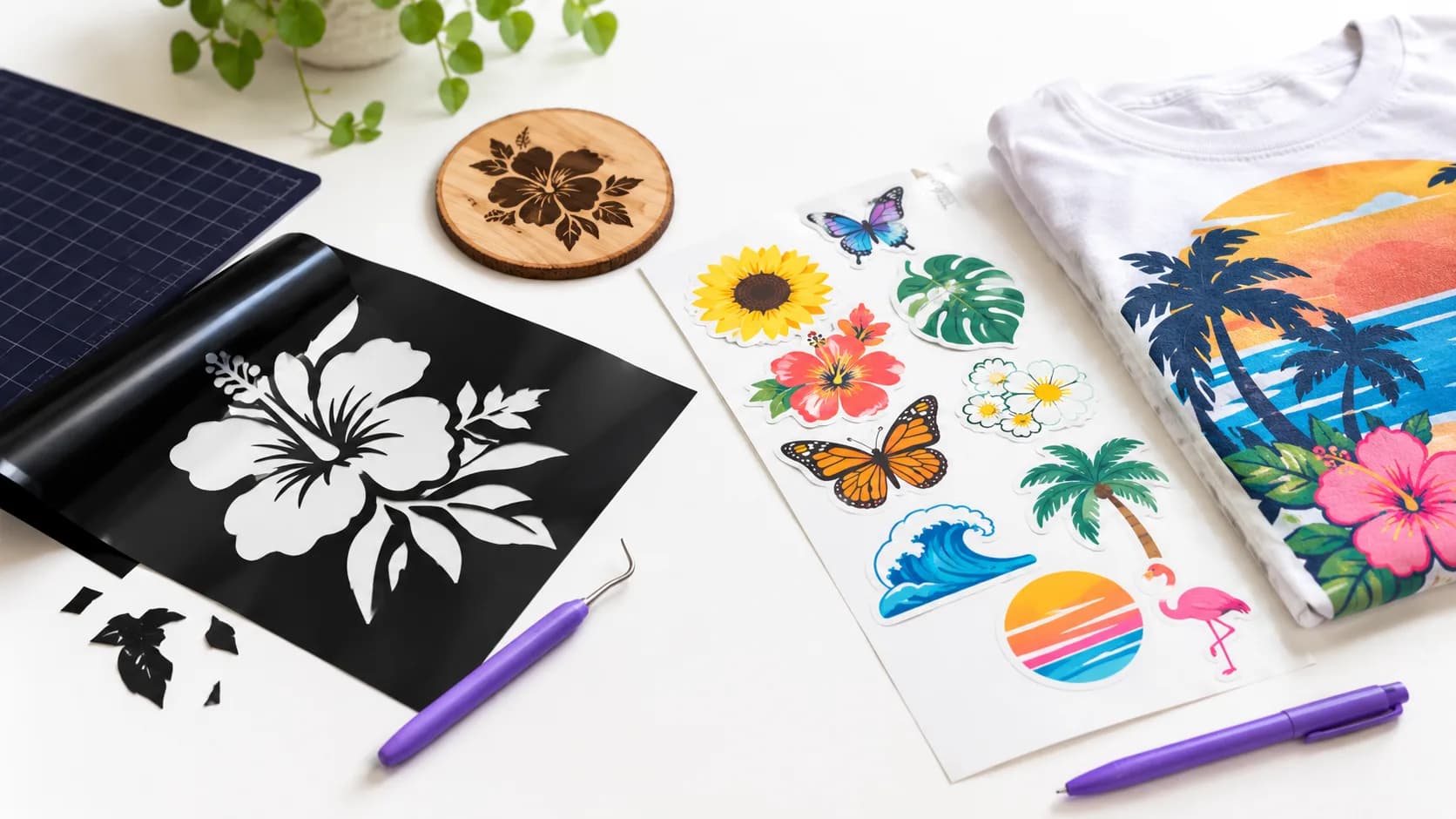
The right kind of SVG depends on how the design will be made, not on how it looks on screen. If a machine will cut or burn it, choose Black & White. If it will be printed or shown on a screen in several colors, choose Color.
This guide explains what each tab in SvgCraft produces, which one fits common jobs such as Cricut vinyl, laser engraving, stickers, print on demand and web graphics, and how to check the result before you use it.
What each tab produces
SvgCraft makes two kinds of SVG, and this article calls that choice the mode. You choose it with the Black & White and Color tabs in the style picker at SvgCraft Projects.
Black & White
- Output: black artwork only. The white background is removed, so the file has a transparent background.
- Styles: 8 styles: Vinyl, Flat, Outline, Silhouette, Engraving, Drawing, Linocut and Cartoon.
- Cost: 1 credit per generation.
- Made for: cutting machines, vinyl and laser work.
Color
- Output: flat, fully opaque color regions; the generation asks the image model for at most 8 solid colors.
- Editable shapes: each color is a separate shape you can edit.
- Background: transparent.
- Styles: 22 styles, from Flat Illustration to Stained Glass. The color SVG styles guide describes each one.
- Cost: 2 credits per generation.
Black & White and Color designs both download as SVG, PDF, PNG and JPG, and both open in the in-browser editor.
Three questions that decide the tab
- How will the design be produced? Cutting and engraving follow shapes and paths. Printing reproduces color. A cutter does not care what color a shape is on screen; a printer does.
- How many materials or inks will you use? Each color in a cut project usually means a separate piece of material. Each color in screen printing means a separate screen. Fewer colors mean less work.
- Where will people see it? A sticker, T-shirt print, poster or website shows the colors directly. A decal cut from red vinyl gets its color from the material, not from the file.
If your answers are "cut or burn", "one material" and "the material provides the color", Black & White is the better fit. If they are "print", "many colors" and "the file provides the color", choose Color.
Which tab to use, by project
Cricut and Silhouette vinyl or HTV
Use Black & White for single-layer decals, iron-on (HTV) shirts and signs. The machine cuts the outline of every black shape, and you choose the vinyl color. A one-color file also means one cut and one weeding pass.
Layered vinyl is the exception. If you want a multi-color decal, a Color file already separates the design into one shape per color, which you can use as cut layers. Expect more work, though: each color is cut from its own sheet, weeded and lined up by hand. The guide to using color SVG files with Cricut and Silhouette covers this in detail. For your first projects, start with Black & White; the guide to making SVG files for Cricut walks through the full process.
Laser cutting and engraving
Use Black & White. A laser marks or cuts where the design tells it to and leaves the rest untouched, so a design only needs two states: burn or don't burn. Black artwork on a transparent background maps directly to that. The Engraving, Linocut and Silhouette styles are useful starting points. See Black and White SVG for laser cutting and engraving for material and size checks.
Stencils and screen printing
Use Black & White for stencils and one-ink screen prints. A stencil is a single cut layer, and one ink needs one screen. Silhouette and Vinyl are good starting points. For a stencil, check that inner pieces, such as the center of a letter O, still connect to the rest of the design, or they will fall out when cut.
For multi-ink screen printing, a Color file is a reasonable start because each color is already a separate shape. Because the generation asks for at most 8 solid colors, you can count the colors in the result, and so the screens you need, before you commit.
Stickers
Use Color. Stickers are printed, so the file has to carry the colors. The Sticker style is designed for this: one self-contained subject with a thick, uniform dark outline around the whole silhouette, which gives a clear edge for die cutting. Cartoon Mascot and Kawaii also work well. Making color SVG stickers and print on demand designs explains the full workflow.
Print on demand: T-shirts, mugs, tote bags
Use Color for most print-on-demand designs, because full-color artwork is what customers expect on a printed product. The transparent background matters here: the design sits on the product color without a white box around it.
Use Black & White when you want a one-color look, for example a line drawing on a light shirt or a design you also plan to sell as a vinyl cut file. You can change the fill color of a black design in the SVG editor if you want it in another single color.
Web graphics and icons
Both tabs work, for different jobs:
- Black & White suits icons and simple marks. A one-color SVG is easy to recolor with CSS once you set its fill to currentColor, for example to match a site theme or dark mode.
- Color suits illustrations, mascots and hero graphics. Flat color regions keep the SVG sharp at any size, which is the main reason to use SVG on the web instead of a photo format.
Printed paper products: posters, cards, invitations
Use Color when the design is printed as artwork. Use Black & White when it is cut from paper or cardstock, or when you want a single-ink look such as a line drawing on a card.
Quick reference
- Single-layer vinyl, HTV, decals: Black & White
- Layered multi-color vinyl: Color, with extra cutting and alignment work
- Laser cutting and engraving: Black & White
- Stencils, one-ink screen printing: Black & White
- Stickers: Color
- Print on demand: Color, or Black & White for one-color designs
- Web icons: Black & White
- Web illustrations: Color
- Printed posters and cards: Color
Not sure? Try both
If you are unsure, generate the same idea in both tabs and compare; that costs 3 credits in total.
Check the result before you use it
- For Black & White cut files: look for very thin lines or tiny islands that will be hard to cut or weed at your final size, for example a 2-inch (5 cm) decal.
- For Color files: count the colors you actually need to print or cut.
The clean SVG checklist covers the remaining checks, and Edit SVG lets you fix paths and colors in the browser.
Start your design
Open SvgCraft Projects, pick the Black & White or Color tab in the style picker and enter a prompt or upload an image. Plans and credit amounts are on the pricing page.
How this article was made: drafted with AI assistance and checked by the SvgCraft team against SvgCraft's current product behavior.