
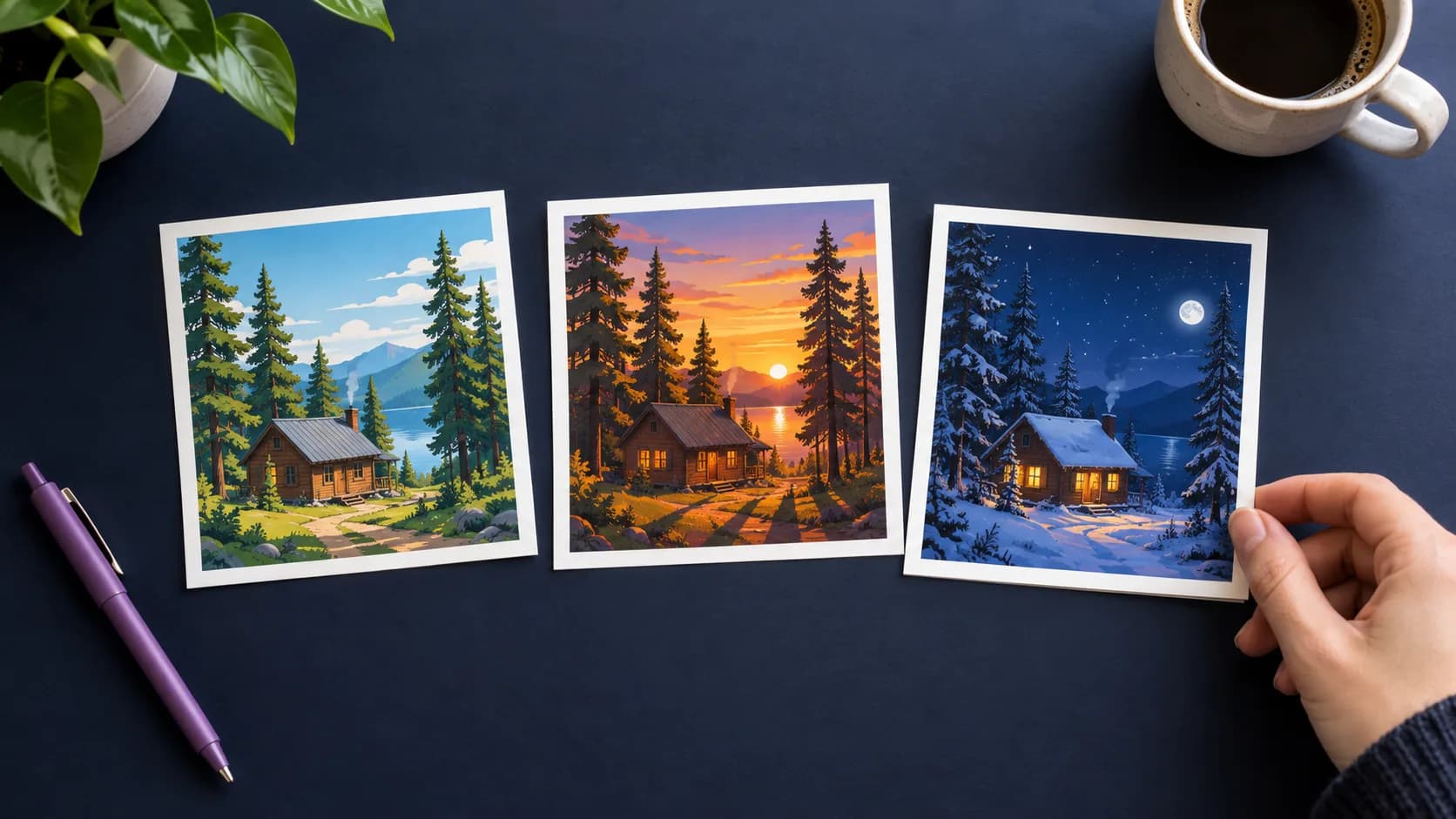
SvgCraft lets you pick one of three image models before you generate: Grok Imagine 2.0, Nano Banana 2 and GPT Image 2.5. The model draws the image; SvgCraft then turns that image into an SVG. This guide explains what actually differs between the three inside SvgCraft and how to choose one for your design.
The short answer: the three models cost the same, go through the same vectorization and produce the same kind of SVG. The practical differences are the aspect ratios each one offers and how each one interprets your prompt. The reliable way to choose is to run the same prompt on each model and compare the SVGs.
What is the same on every model
These points hold whichever model you pick, so they should not drive your choice:
- Credit cost. A Black & White generation costs 1 credit and a Color generation costs 2 credits on all three models.
- Vectorization. Every image goes through the same SvgCraft vectorization.
- Styles. The 8 Black & White styles and 22 Color styles are available with every model.
- Output and editing. You get an SVG with a transparent background that you can open in Edit SVG and download as SVG, PDF, PNG or JPG.
- Batch size. You can run up to 4 generations at the same time.
For how the pipeline works from image to SVG, see how SvgCraft turns AI images into clean SVG.
What differs: the models and their aspect ratios
All three are third-party image models; SvgCraft does not make its own image-generation model. Each model draws differently from the same prompt, and SvgCraft does not publish a ranking of their quality. The difference you can check before generating is the list of aspect ratios (Grok Imagine 2.0 is the default).
Aspect ratios at a glance
- 1:1, 3:2, 2:3, 16:9, 9:16: all three models
- 4:3, 3:4, 21:9: Nano Banana 2 and GPT Image 2.5
- 4:5, 5:4: Nano Banana 2 only
Two details affect this list in practice. When you upload an image instead of writing only a prompt, every model also offers an option that keeps the uploaded image's own ratio. And if you switch to a model that does not support the ratio you had selected, SvgCraft changes the ratio to the new model's first option instead of keeping an unsupported one. Check the ratio again after switching models.
When the aspect ratio decides for you
Pick the ratio that matches where the design will go, then use a model that offers it:
- Square decals, stickers, coasters and icons: 1:1 works on every model.
- A shirt front or a portrait print: 2:3, 3:4 or 4:5, depending on your layout. 4:5 is available only on Nano Banana 2.
- Signs, banners and wide headers: 16:9 on any model, or 21:9 on Nano Banana 2 or GPT Image 2.5.
- Phone wallpapers and tall graphics: 9:16 on every model.
An SVG can be resized without losing sharpness, but changing its proportions stretches the artwork. That is why it is worth generating in the right shape from the start.
How to compare the models for your design
Because each model interprets a prompt in its own way, the result for your specific idea is the only fair comparison. Use this test:
- Open SvgCraft Projects and write your prompt.
- Choose the style and an aspect ratio that all three models support, such as 1:1, so the ratio is not the variable.
- Generate with Grok Imagine 2.0. Keep the prompt and style unchanged.
- Switch to Nano Banana 2 and generate again, then do the same with GPT Image 2.5.
- If a single result per model is not enough, set the batch to 4. Four results from one model show how much its output varies for the same prompt.
One result per model costs 3 credits in the Black & White tab or 6 in the Color tab. A batch of 4 on one model costs 4 or 8 credits.
What to look at in the results
Judge the SVG, not only the preview. Open each result in Edit SVG and check:
- Prompt match: are the subject, pose and elements you asked for present?
- Shape quality: are the edges clean, and are there stray specks or very thin parts you would need to fix?
- Text: if the design includes words, are they spelled correctly?
- Composition: does the artwork use the frame well at the ratio you chose?
- For Color designs: does the palette stay flat and limited, with clear regions you can edit?
The clean SVG checklist lists what a usable file needs in more detail.
A prompt matters as much as the model
If none of the three results is right, change the prompt before you conclude a model is the problem. Gradients, soft shading and photographic texture have no flat regions, so they turn into many tiny shapes when vectorized. A clear subject, a simple composition and flat shapes in the prompt avoid that on every model. The guide on writing prompts for clean color SVG covers this.
Run your own comparison
Open SvgCraft Projects, pick the aspect ratio your product needs and run the same prompt on each model that offers it.
How this article was made: drafted with AI assistance and checked by the SvgCraft team against SvgCraft's current product behavior.