
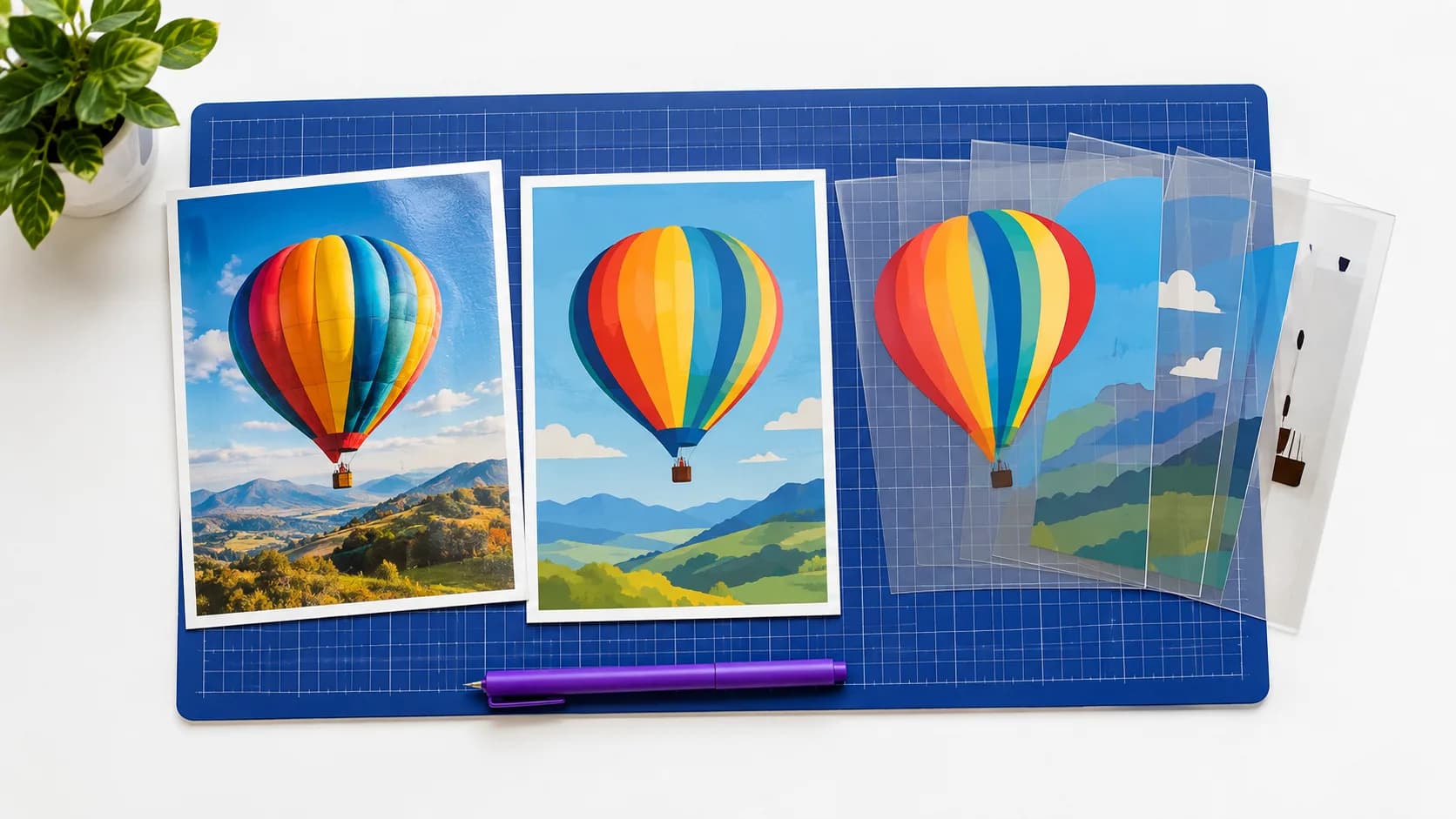
AI image models produce pixels, not vectors. Even when an image looks like a clean illustration, it is still a grid of colored pixels, and you cannot send it to a cutting machine or scale it without quality loss. SvgCraft handles that step: it generates an image with a third-party AI model and then converts it into an SVG with its own vectorization engine.
This article walks through that pipeline step by step — what happens to your prompt or upload, where the image comes from, how it becomes vector shapes, and what you get at the end. Knowing the steps helps you pick the right tab and style and understand why the result looks the way it does.
The pipeline at a glance
- You choose the Black & White or Color tab, a style, a model and an aspect ratio, and enter a prompt or upload an image.
- SvgCraft sends the request to the AI image model with instructions for vector-friendly artwork.
- The model returns a raster image.
- SvgCraft's own vectorization engine converts that image into SVG paths.
- For color artwork, machine-learned refinement cleans up the shapes.
- The background is removed, so the SVG is transparent.
- You review and edit the design in the browser, then download it.
A generation takes about 1–2 minutes from start to finished SVG. You can run up to 4 generations at the same time.
Step 1: Choose the tab, style and model
You start at SvgCraft Projects. The style picker has two tabs, and the choice between them decides what kind of SVG you get:
- Black & White — 8 styles (Vinyl, Flat, Outline, Silhouette, Engraving, Drawing, Linocut, Cartoon). A Black & White design is black artwork only on a transparent background, for cutting machines, vinyl and laser work. 1 credit per generation.
- Color — 22 styles, such as Flat Illustration, Sticker, Kawaii, Vintage Badge, Stained Glass, Isometric, Low Poly and Pixel Art. A Color design is made of flat, fully opaque color regions. 2 credits per generation.
If you are not sure which one you need, see Black and White vs Color SVG: which one do you need?
In the model picker you choose which AI model draws the image: Grok Imagine 2.0 (the default), Nano Banana 2 or GPT Image 2.5. The models differ in the aspect ratios they offer; see choosing an AI image model for SVG.
Step 2: The request is shaped for vectors
Your prompt is not sent to the model on its own. SvgCraft adds instructions based on the tab and style you picked, so the model draws something that can be converted cleanly.
For a text prompt in the Black & White tab, the model is asked for pure black artwork on white. In the Color tab, a text prompt comes with instructions for flat artwork that ask the image model for at most 8 solid colors; how to write prompts for clean color SVG lists them in full. When you upload an image, the model is asked to keep its subject and composition; in the Color tab it redraws the image's main colors as flat, opaque regions.
This step matters because the hardest parts of vectorization — gradients, soft shading, noisy texture — are much easier to avoid in the image than to fix afterwards. Why color SVG is hard explains those problems in detail.
Step 3: A third-party AI model generates the image
The image itself is generated by the model you selected. SvgCraft does not make its own image-generation model; it uses these third-party models and focuses its own work on the steps before and after them. All three models feed into the same vectorization step, so switching models changes how the image is drawn, not how it is converted.
The result of this step is still a raster image. It looks like vector art, but it is pixels.
Step 4: SvgCraft's own engine converts it to SVG
SvgCraft uses its own in-house vectorization engine to turn the generated image into clean SVG. The engine reads the pixels, groups them into shapes and describes each shape as a path.
For Black & White designs, that means smooth black shapes with the white removed. For Color designs, the engine builds flat color regions, and touching regions share clean edges. Each color becomes a separate editable shape, which is what makes recoloring and layered use practical later.
Step 5: Machine-learned refinement for color artwork
Color artwork gets an extra cleanup pass. SvgCraft uses machine-learned models to refine it: crisper corners, fewer stray specks and cleaner shapes. These are the small defects that make a color file slow to edit or cut even when it looks right at normal size.
Step 6: The background is removed
Every design comes out on a transparent background. In a Black & White design, only the black artwork remains. In a Color design, the page background is removed while white details enclosed by the artwork — eyes, highlights, white areas inside a badge — stay in place.
That means you can place the SVG on a shirt mockup, a sticker sheet or a colored web page without first deleting a white box behind it.
Step 7: Review, edit and download
When the SVG is ready, open it in Edit SVG, the in-browser editor, to adjust paths, colors and text. Zoom in on edges and select a color to confirm the file is clean; the clean SVG checklist covers the full check.
Then download the design as SVG, PDF, PNG or JPG; downloading a design you already created does not cost credits. Designs made in SvgCraft can be used commercially; you are responsible for not infringing third-party rights in your prompts, uploads and final use.
What this pipeline is good for — and what it is not
The pipeline is built for graphic artwork: cut files, stickers, print on demand designs, simple marks, icons and illustrations made of clear shapes. Because the image is steered toward flat shapes before conversion, the SVGs stay editable and reasonably sized. For single-color laser work, see Black and White SVG for laser cutting and engraving.
It is not meant to reproduce photographic detail. If you upload a photo, the result is a flat, simplified version of it, not a vector copy of every tone. For photo-based cut files, how to turn a photo into an SVG for Cricut covers what to expect.
Start with one prompt
To see each step on your own idea, open SvgCraft Projects, choose the Black & White or Color tab and a style, and run a prompt. Plans and credit amounts are on the pricing page.
How this article was made: drafted with AI assistance and checked by the SvgCraft team against SvgCraft's current product behavior.