
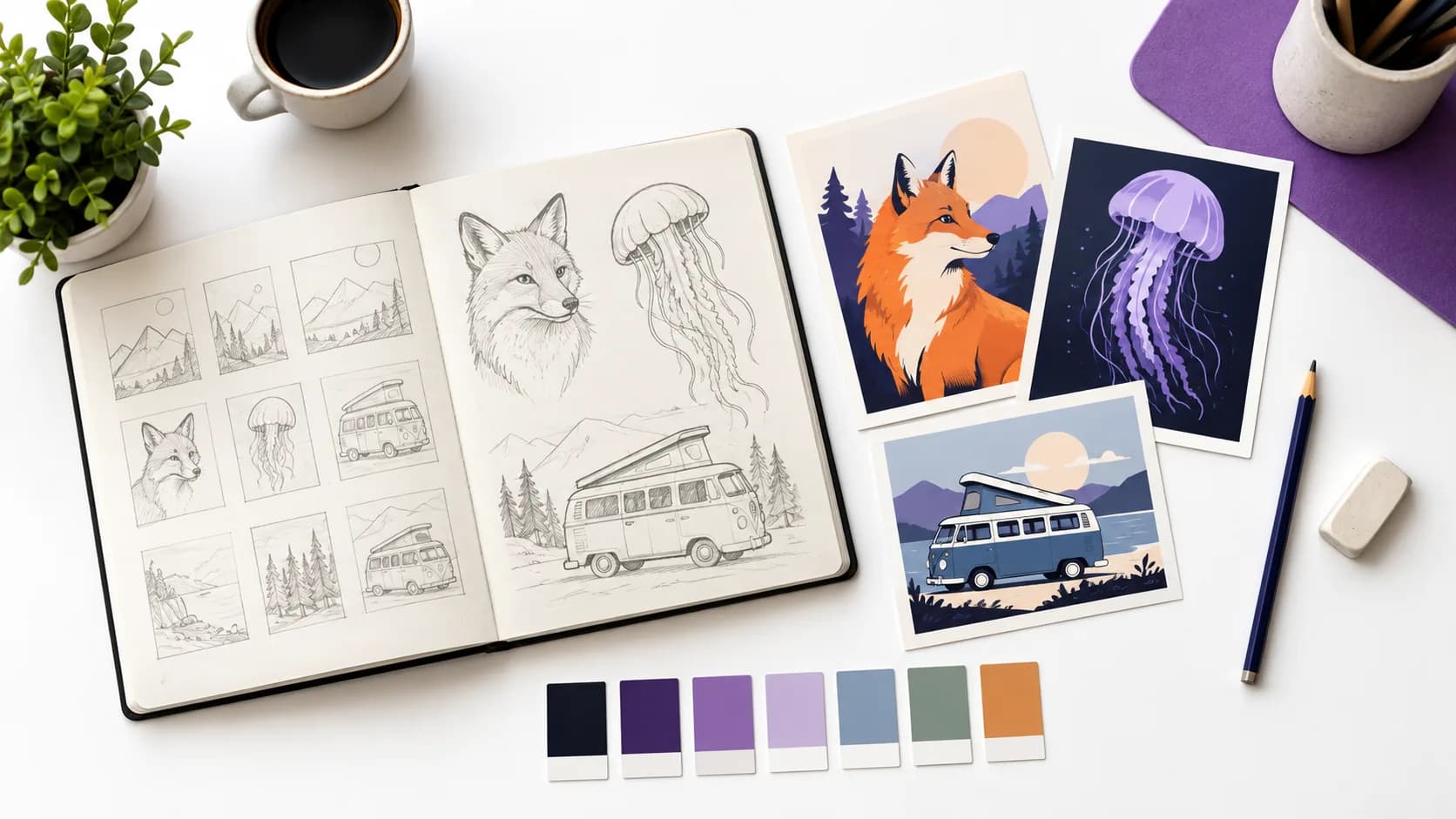
A good prompt for color SVG describes one clear subject, a few defining details and, if needed, a short piece of text. It does not need words like "vector", "flat" or "no gradients", because SvgCraft already adds those instructions. What it does need is to avoid anything that fights clean vector output: gradients, photographic texture, tiny text, crowded scenes and large numbers of colors.
This guide explains what SvgCraft adds to your prompt, a simple structure for your own part, example prompts for common uses and the words to leave out.
What SvgCraft already adds to your prompt
When you generate in the Color tab, SvgCraft wraps your text in its own instructions before sending it to the image model. For a text prompt, those instructions ask for:
- a palette of at most 8 fully opaque solid colors, following the chosen style;
- no gradients, shading, shadows, glow, blur, texture, noise or transparency;
- large, closed color regions whose edges meet cleanly, without gaps or halos;
- a clean white background, with no frame, mockup or scene around the artwork;
- one finished artwork with a strong silhouette and one main subject, kept fully inside the canvas;
- any text you write reproduced exactly, with no extra text added.
Each style adds its own look and palette on top. For example, Sticker asks for a thick dark outline around the whole silhouette, Kawaii asks for soft pastels and chubby rounded shapes, and Retro Groovy asks for warm 70s colors such as burnt orange, mustard and teal. The color SVG styles guide lists all 22 styles.
So your prompt should spend its words on the subject, not on technical instructions. Repeating "flat vector, no gradients" does no harm, but it adds nothing. Words that contradict these rules do harm, because the model receives two opposite requests.
A simple prompt structure
Most good color SVG prompts follow this order:
- Subject: what the design shows. "A red fox", "a vintage camera", "a bowl of ramen".
- Action or pose: what the subject is doing. "Sitting and looking up", "mid-jump", "tilted at an angle".
- Two or three details: the features that make it recognizable. "Fluffy tail, small scarf".
- Composition (optional): "centered", "inside a circle", "facing left".
- Colors (optional): two to four named colors if you want a specific palette.
- Text (optional): one to four words in quotation marks.
A red fox sitting and looking up at the moon, fluffy tail wrapped around its feet, small green scarf, centered
This prompt is short and concrete, and it leaves the look and the technical rules to the style you choose.
Example prompts by use case
Stickers
Stickers are small, so one subject with a strong outline reads best. Use the Sticker, Kawaii or Cartoon Mascot style.
A happy strawberry with tiny arms holding a milk carton, round shapes
A sleepy sloth hanging from a single branch, eyes closed, big smile
A potted cactus with a pink flower on top and the text "LOOK SHARP"
T-shirts and print on demand
Apparel designs can carry a bit more composition and a short slogan. Start with the quick picks from the styles guide: Retro Groovy, Pop Art, Traditional Tattoo and Flat Illustration. For preparing files, see making color SVG stickers and print on demand designs.
A sun setting behind three rounded mountains with wavy stripes in the sky and the text "GOOD VIBES"
A swallow carrying a banner, classic tattoo flash layout, banner text "HOME"
A camper van parked under a crescent moon, orange and teal colors
Logos, badges and mascots
Logos need a clear silhouette that still works at small sizes. Use Vintage Badge, Esports Logo or Cartoon Mascot, and keep the name short.
A circular badge with a steaming coffee cup in the center and the text "NORTH ROAST"
An angry owl head facing forward, sharp angular feathers, purple and yellow
A friendly cartoon tooth mascot giving a thumbs up
Kids, parties and classroom designs
Kids Doodle, Kawaii and Cartoon Mascot give playful, rounded shapes.
A dinosaur wearing a party hat and blowing a party horn, number "5" on its belly
A smiling rainbow with two fluffy clouds at its ends
Web and presentation illustrations
Flat Illustration and Isometric work well for websites, slides and app screens.
A person working on a laptop at a desk with a plant and a coffee mug, side view
A small isometric warehouse with a delivery truck and stacked boxes
What to avoid in color SVG prompts
Gradients and lighting effects
Words such as "gradient sky", "glowing", "neon glow", "soft lighting", "shadows", "sunset gradient" or "metallic chrome" ask for smooth color changes. A vector made from those images needs many thin color bands or tiny shapes to imitate them. Describe the colors as separate areas instead: "an orange sky with a yellow sun" rather than "a glowing sunset gradient".
Photographic realism and texture
"Photorealistic", "3D render", "watercolor", "oil painting", "detailed fur", "grain", "canvas texture" and "8K" push the model toward texture and shading that have no flat regions. Ask for the features instead of the rendering: "a fox with a fluffy tail" works, "hyper-detailed realistic fox fur" does not.
Tiny or long text
Long sentences, paragraphs, small captions and fine print become hard to read and hard to edit once vectorized, and longer text gives the model more chances to misspell. Keep text to one to four words, put it in quotation marks and check the spelling in the result. If a word is wrong, you can replace it in Edit SVG by deleting the letter shapes and adding new text.
Too many colors
Color styles ask the image model for at most 8 solid colors. Prompts such as "every color of the rainbow", "a colorful crowd" or "20 different flowers in different colors" conflict with that request, so the result may not keep the colors you had in mind. If color matters, name two to four colors and let the style fill in the rest.
Busy scenes and micro-detail
"A busy city street full of people", "intricate lace pattern" or "hundreds of tiny stars" lead to small fragments that print poorly and make heavy files. Reduce the scene to its main subject, or pick two or three supporting elements.
Mockups, sticker sheets and grids
Asking for "a t-shirt mockup", "a sticker sheet with 12 stickers" or "four variations in a grid" conflicts with the instruction to return one finished artwork on a clean background. Generate one design per prompt, and use a batch to get variations.
Rewriting a weak prompt
Here is a typical prompt that works against color vector output:
Ultra realistic glowing jellyfish in a deep ocean with light rays, bubbles, gradient blue water, cinematic lighting, 8K
And a version that keeps the idea but fits flat color:
A jellyfish with long curly tentacles, pink and purple, with a few large round bubbles around it
The second version keeps the subject and mood, drops the lighting and texture words and limits the extra elements to a few large shapes.
Prompts with an uploaded image
When you upload an image in the Color tab, SvgCraft asks the model to keep the subject, framing and main colors of your image while redrawing it as flat, opaque color regions. Similar shades are merged when needed to keep the palette clean. Because the image already defines the subject and colors, the prompt can stay short: name the subject, for example "a golden retriever puppy", so the model knows what to keep.
Test and refine
- Run a batch: up to 4 generations can run at the same time, and each Color generation costs 2 credits.
- Change one thing at a time: if a result is too busy, remove details from the prompt before changing the style.
- Try another model: the same prompt can look different on Grok Imagine 2.0, Nano Banana 2 and GPT Image 2.5. See choosing a model for SVG.
- Check the result: use the clean SVG checklist for specks, closed shapes and file size.
Next step
Pick one use case above, choose a matching style in the Color tab and adapt one of the example prompts to your subject on the Projects page. To see what other prompts produced, browse the gallery.
How this article was made: drafted with AI assistance and checked by the SvgCraft team against SvgCraft's current product behavior.