
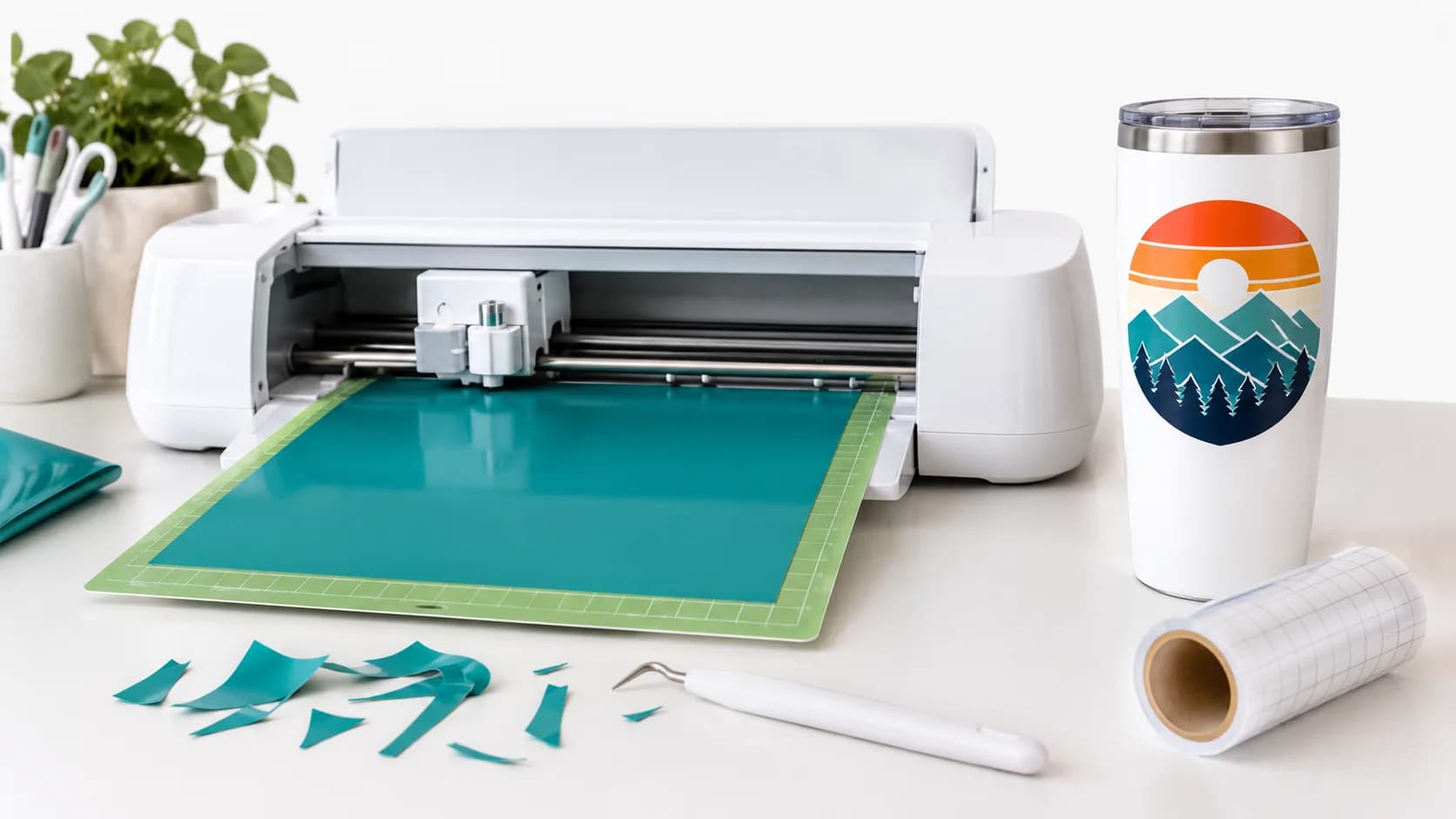
A color SVG is not one flat picture. It is a set of shapes, each with its own color. Cutting software reads those shapes and turns them into separate layers, which you then cut from different materials and stack, or print and cut as one sticker.
This guide explains how a color SVG behaves in Cricut Design Space and Silhouette Studio: how layers appear after upload, how to keep them aligned, how to reduce the number of materials, and when to flatten the design for Print Then Cut instead. Every software step below is based on Cricut's official help pages and the Silhouette 101 blog, linked in each section.
Decide first: layered cut or print and cut
There are two ways to turn a color SVG into a physical object. Choose before you start, because the steps differ.
- Layered cut: each color is cut from its own material, such as vinyl, iron-on or cardstock, and the pieces are stacked. This works best with a small number of bold, flat colors.
- Print Then Cut: the whole design is printed on a home printer, and the machine cuts around it. This suits stickers and designs with many colors or small color details.
A useful rule: count the colors and look at the smallest color areas. If there are only a few colors and every piece is large enough to cut and weed at the finished size, layer it. If not, print it.
What makes a color SVG work as layers
Cutting software separates layers by color, so the file needs flat, solid fills. Cricut states that gradients, textures, patterns and images in an SVG prevent Design Space from separating shapes into layers by color, and it lists them as unsupported items together with clipping paths, editable text and linked images (Cricut: Image uploads, unsupported items).
A good layered file also has:
- a limited palette, because every color is another material to cut and place;
- a transparent background, so no white rectangle arrives as an extra layer;
- no stray specks, because each one is a separate piece to cut and weed.
The clean SVG checklist covers how to check each of these before upload.
Create a color SVG in SvgCraft
In SvgCraft Projects, open the style picker and choose a style under the Color tab. There are 22 color styles, including Flat Illustration, Sticker, Paper Cut and Vintage Badge. A Color generation costs 2 credits.
A Color design already fits this workflow: each color is a separate editable shape on a transparent background (how SvgCraft turns AI images into clean SVG explains why).
For a layered cut, name three or four colors in your prompt, for example "red, cream and dark green, bold shapes, no tiny details". Then open Edit SVG to delete any piece too small to cut, or recolor a shape so it joins another color. Download the file as SVG.
Upload the SVG to Cricut Design Space
Cricut's current upload steps on Windows and Mac (Cricut: How to upload images into Design Space):
- Select Upload on the design panel to the left of the Canvas, then Upload Image.
- Select Browse or drag the SVG into the upload window, then select Continue.
- Name and tag the image, then select Upload.
Cricut states that SVG files are uploaded as designed, and that files designed with layers are automatically separated into layers after uploading. The uploaded image appears on the Canvas as a grouped image. If you ungroup it, the layers can be moved and sized separately. SVGs are limited to 5,000 paths; a file with more returns a "File Too Large" error.
Work with the layers in Design Space
Check the Layers panel
After upload, open the Layers panel and compare it with the design you approved. Each color should correspond to a layer you intend to cut. A white layer is expected when the design has enclosed white details such as eyes or highlights; a white layer covering the whole design area means the file still has a background shape. A long list of tiny layers usually means specks.
Reduce colors with Color Sync
If two layers use nearly the same color, you do not need two materials. Cricut's Color Sync panel consolidates colors: drag a layer and drop it onto another layer whose color you want to match. The panel shows only layers set to Cut (Cricut: Color Sync panel).
Use Attach to keep pieces in place
By default, Design Space places images on the mat as close together as possible to save material. Attach holds selected cuts in the same position relative to each other, as arranged on the Canvas (Cricut: How to use Attach). Cricut advises attaching by layer or color.
For a layered design, this matters when one color has several separate pieces, such as two eyes or a row of dots. Attach those pieces so they cut in the right arrangement.
Weld only when you want one piece
Weld permanently joins overlapping shapes into a single-layer object, and only the outer cut path remains where paths intersect (Cricut: Combine, Slice and Weld). Welded shapes take the same color and are no longer editable. Use Weld when separate shapes of one color should become one cut piece. Do not weld different color layers of a layered design, because they would become a single piece of one color.
Print Then Cut instead of layering
For stickers or designs with many colors, Print Then Cut is simpler. Cricut's Flatten feature turns a multi-layer design into a single printable layer, and the machine cuts only the outer shape of the flattened objects. When you flatten a design, its Operation changes to Print Then Cut automatically (Cricut: How to Print Then Cut).
Cricut notes that the whole process, from printing to cutting, should be done in one Design Space session on the same device. Printing a saved PDF outside Design Space leads to incorrectly sized cut sensor marks. Print Then Cut also requires a compatible machine and printer, which are listed on the same page.
Open the SVG in Silhouette Studio
Silhouette Studio needs Designer Edition or higher to open external SVG files. The Silhouette 101 blog describes the process (Silhouette 101: Using SVGs in Silhouette Studio):
- Set the Import properties so imported SVGs open centered on the page. Otherwise, some files can open outside the work page.
- Choose the Open icon, or drag the SVG from a folder onto the design page.
- Check the line thickness in the Quick-access Toolbar. Many SVGs open at 1.0; for cutting, the article recommends setting it to 0.0.
- Ungroup, or release the compound path, if you need to move pieces separately. Regroup pieces that belong together.
- Turn on cut lines in the Send panel. Choose Cut or Cut Edge, depending on whether inner parts need to cut.
The article notes that SVGs from different sources behave differently, so review each file after opening it. It also states that the design can be cut from colored material or, with registration marks turned on, used for Print & Cut.
Check before you cut
- The number of layers matches the number of materials you plan to use.
- No full-size white background layer and no tiny stray layers were imported.
- Separate pieces of one color are attached, or grouped, so they keep their positions.
- Different colors remain separate layers and are not welded together.
- The imported size matches the finished size you planned.
Before cutting expensive material, cut a small test piece. It shows whether thin areas and small pieces survive the real material.
Start with a flat, limited palette
Create a Color design in SvgCraft Projects, review it in Edit SVG, then upload the SVG and check the layers before you cut. If you are not sure whether your project needs color at all, read Black and White vs Color SVG.
How this article was made: drafted with AI assistance and checked by the SvgCraft team against SvgCraft's current product behavior and the official documentation linked above.