
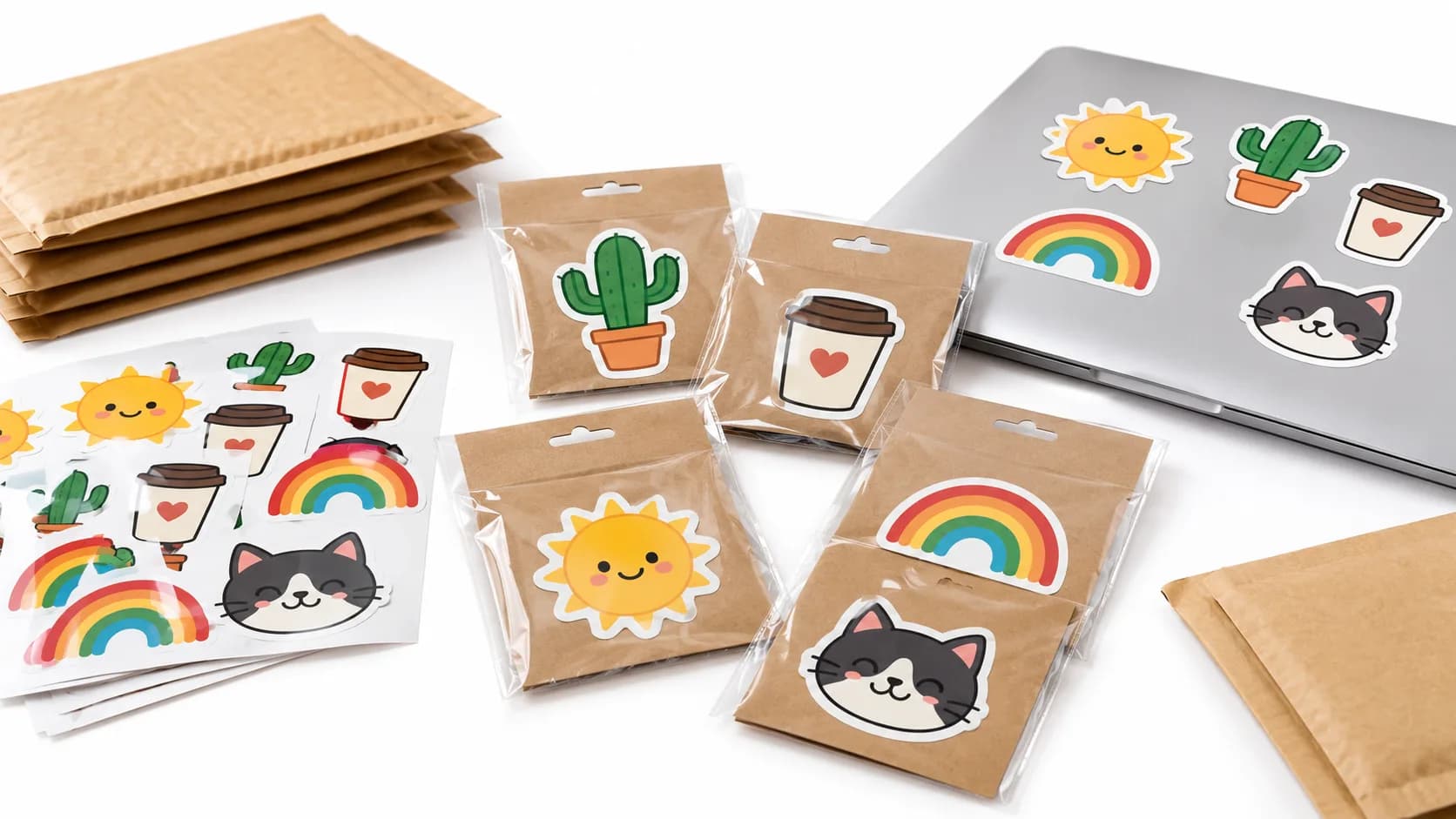
If you sell stickers or print-on-demand products, you need artwork that stays sharp at any size, has a transparent background and uses a small set of solid colors. A color SVG gives you all three. This guide shows how to make one with AI in SvgCraft and how to prepare it for a sticker shop or a print-on-demand platform.
The short version: generate the design in the Color tab with a style such as Sticker or Kawaii, check it for stray shapes and spelling, fix anything small in the editor, keep the SVG as your master file, and upload a 4096 px transparent PNG wherever the platform asks for a raster file.
Why a color SVG is a good master file for stickers and POD
Most sticker and print-on-demand listings start with one design that ends up on many products and at many sizes. A raster image only has the pixels it was made with. A vector file describes shapes, so you can export it again at any size without blur.
Flat color regions also help in print. Each color is a separate shape, so you can change a single color for a dark shirt, remove a detail that is too small for a 2-inch sticker, or replace a misspelled word (delete the letter shapes and add new text in Edit SVG) without redrawing the design. Gradients and photographic texture make this hard. For the details, see why color SVG is hard.
Before you start
- An SvgCraft account. You create designs on the Projects page.
- Credits: a Color generation costs 2 credits, so a batch of 4 costs 8. Downloading a design you already made costs nothing, including in another format or size. Plans and credit amounts are on the pricing page.
- The file requirements of your platform. Open the product's own file guidelines before you design, because the print area and the required format differ from product to product.
1. Choose the Color tab and a style that fits the product
The style picker has two tabs, Black & White and Color. Black & White is made for cutting machines, vinyl and lasers. For stickers and printed products, use Color. If you are unsure which one you need, read Black and White vs Color SVG.
These Color styles suit sticker and POD work well:
- Sticker: a thick dark outline that gives a clear die-cut edge.
- Kawaii: cute pastel characters. Suits planner and laptop stickers.
- Cartoon Mascot: expressive characters for brand and team merch.
- Retro Groovy: 1970s shapes in warm colors for shirts and mugs.
- Pop Art: bold primary colors for shirts and posters.
- Traditional Tattoo: classic flash motifs for apparel.
- Flat Illustration: a clean all-round look for any product.
For T-shirts and other print on demand products, start with Retro Groovy, Pop Art, Traditional Tattoo or Flat Illustration. All 22 styles are described in the color SVG styles guide.
2. Write a prompt that describes one printable subject
SvgCraft already asks the image model for flat, solid colors on a plain background, so your prompt only needs to describe the subject, a few defining details and any text. One clear subject works better than a busy scene, especially at sticker size.
A sleepy orange cat curled up inside a coffee mug, steam shaped like a small heart
A smiling avocado astronaut floating with a tiny planet, round friendly shapes
A mountain sunset badge with pine trees and the text "STAY WILD"
A bold wolf head mascot facing forward, sharp angular fur, teal and orange
Keep text short, one to four words, put it in quotation marks and check the spelling in the result. For a full method with more examples, read how to write prompts for clean color SVG.
3. Pick the model, aspect ratio and batch size
SvgCraft uses third-party AI models to create the image: Grok Imagine 2.0 (the default), Nano Banana 2 and GPT Image 2.5. The result then goes through the same vectorization for every model. See choosing a model for SVG for their differences.
Choose the aspect ratio for the product, not for the preview:
- 1:1 for most stickers, badges and mug wraps with a single centered graphic.
- 2:3 or 3:4 for a portrait shirt print. 3:4 is available with Nano Banana 2 and GPT Image 2.5.
- 3:2 or 16:9 for wide designs such as bumper stickers or banners.
You can run up to 4 generations at the same time. Running the same prompt as a small batch gives you several compositions to choose from.
4. Check the result before you sell it
Look at the design at full size and at the size it will be printed. Check these points:
- Background: it should be transparent.
- Specks and slivers: tiny isolated shapes disappear or look like dirt when printed small.
- Outline: for die-cut stickers, the outer outline should be closed all the way around.
- Text: check every letter. AI image models can misspell words.
- Detail size: thin lines that look fine on screen can vanish on a small sticker.
The clean SVG checklist covers these checks in more detail.
5. Make small fixes in the editor
Open the design with Edit SVG to adjust paths, colors and text in the browser. Because each color is a separate shape, typical fixes are quick: recolor one area so the design reads on a dark product, delete a stray shape, or replace a misspelled word by deleting the letter shapes and adding new text. If the composition itself is wrong, generating again is usually faster than redrawing it.
6. Export the right file for each platform
SvgCraft downloads designs as SVG, PDF, PNG (512, 1024, 2048 or 4096 px wide) and JPG. Which one you upload depends on the platform:
- SVG: keep it as your master file. Use it for resizing, for your own print-then-cut workflow and for any tool that accepts vector files.
- PNG: the common upload format for print on demand. The standard PNG download keeps the background transparent, which is what you need for shirts and die-cut stickers.
- JPG: has a solid background, so it is not a good choice for designs that should sit directly on a product.
- PDF: useful when a print shop asks for a PDF proof or print file.
Many platforms ask for raster files at a specific resolution. For example, Printful's print file guide lists PNG and JPEG as accepted formats, recommends 150 to 300 DPI and asks for the sRGB color profile. As a rule of thumb, 4096 pixels printed at 300 DPI cover about 13.6 inches, and at 150 DPI about 27 inches. Always check the exact print area in the product's own file guidelines, since it changes by product.
If you also cut stickers yourself with a Cricut or Silhouette, read how to use color SVG files with Cricut and Silhouette.
Commercial use and your responsibility
You can use designs you create in SvgCraft commercially, including on stickers and print-on-demand products. You are responsible for making sure that your prompts, uploaded images and final products do not infringe anyone else's rights. In practice, do not prompt for trademarks, logos, brand names, copyrighted characters or song lyrics, and do not upload artwork you do not have the rights to use. Platforms can remove listings that break their intellectual property rules.
Next step
Pick one product you want to sell, note its print area and file format, then generate a small batch in the Color tab on the Projects page. For ideas, browse the gallery.
How this article was made: drafted with AI assistance and checked by the SvgCraft team against SvgCraft's current product behavior and the official documentation linked above.